AzureをTerraformで管理します。この回では下記を実施します。
- Azureに対して認証を行います。
- 認証方法はいくつかありますが、最も簡単?なMicrosoftアカウントでの認証方法を行います。
前提
- 作業はWindows11 Pro 24H2で行っています。
- TerraformをWindowsPCへインストールと初期作業が終わっている必要があります。
AzureをTerraformで管理する~Windowsへのインストールと初期作業~ - Azure無料アカウントの作成が必要です。
- VSCodeのターミナルを使用して進めていきますので、VSCodeおよびVSCode拡張機能の「Microsoft Terraform」をインストールが必要です。
AzureをTerraformで管理する~VSCodeへ実装~ - 作業に当たって下記記事を参照に進めていきます。
https://learn.microsoft.com/ja-jp/azure/developer/terraform/authenticate-to-azure?tabs=azure-powershell
https://learn.microsoft.com/ja-jp/azure/developer/terraform/authenticate-to-azure-with-microsoft-account
概要

詳細

MicrosoftアカウントでAzureに対する認証をする
AzureCLIでサインインする
VSCodeを開き、上部メニューのターミナル-ターミナルを開く を選択します。
ターミナルに下記コマンドを入力し実行します。
PowerShell
az loginaz login実行例:
PowerShell
PS C:\Users\<ユーザー名>\tf_azure> az login
Select the account you want to log in with. For more information on login with Azure CLI, see https://go.microsoft.com/fwlink/?linkid=2271136
PS C:\Users\<ユーザー名>\tf_azure> az login
Select the account you want to log in with. For more information on login with Azure CLI, see https://go.microsoft.com/fwlink/?linkid=2271136Microsoftアカウントでサインインを進める
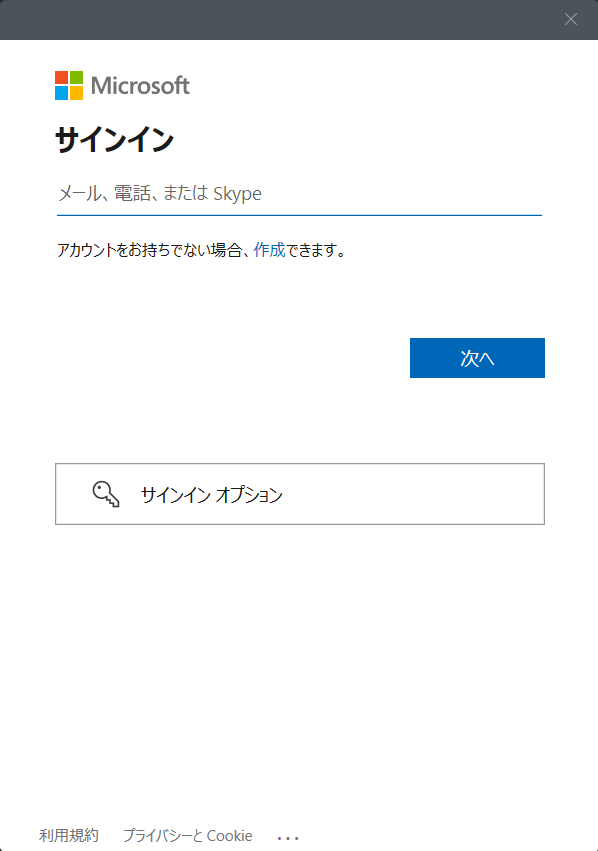
Microsoftへのサインイン画面が表示されますので、画面の指示にしたがい、Azure無料アカウントを作成したアカウントでログインしてください。既定のサブスクリプションに対して認証されます。
- 通常はこの方法でOKのはずですが、サインインしてもエラーが表示される場合があります。
エラー例
PowerShell
PS C:\Users\<ユーザー名>\tf_azure> az login
Select the account you want to log in with. For more information on login with Azure CLI, see https://go.microsoft.com/fwlink/?linkid=2271136
Retrieving tenants and subscriptions for the selection...
Authentication failed against tenant <テナントID> '既定のディレクトリ': SubError: basic_action V2Error: invalid_grant AADSTS50076: Due to a configuration change made by your administrator, or because you moved to a new location, you must use multi-factor authentication to access '999f4846-ba00-4fd7-ba43-dac1f8f63999'. Trace ID: xx9f1b2b-4824-42ec-afd5-05ee5fc90999 Correlation ID: x9x471b0-4379-4944-ab17-747f8ee76b7a Timestamp: 2025-01-01 00:00:00Z. Status: Response_Status.Status_InteractionRequired, Error code: 3399614476, Tag: 557973645
If you need to access subscriptions in the following tenants, please use `az login --tenant TENANT_ID`.
<テナントID> '既定のディレクトリ'
No subscriptions found for itaka_engxxxxx@gmail.com.PS C:\Users\<ユーザー名>\tf_azure> az login
Select the account you want to log in with. For more information on login with Azure CLI, see https://go.microsoft.com/fwlink/?linkid=2271136
Retrieving tenants and subscriptions for the selection...
Authentication failed against tenant <テナントID> '既定のディレクトリ': SubError: basic_action V2Error: invalid_grant AADSTS50076: Due to a configuration change made by your administrator, or because you moved to a new location, you must use multi-factor authentication to access '999f4846-ba00-4fd7-ba43-dac1f8f63999'. Trace ID: xx9f1b2b-4824-42ec-afd5-05ee5fc90999 Correlation ID: x9x471b0-4379-4944-ab17-747f8ee76b7a Timestamp: 2025-01-01 00:00:00Z. Status: Response_Status.Status_InteractionRequired, Error code: 3399614476, Tag: 557973645
If you need to access subscriptions in the following tenants, please use `az login --tenant TENANT_ID`.
<テナントID> '既定のディレクトリ'
No subscriptions found for itaka_engxxxxx@gmail.com.この場合はエラー内容にもあるように、az loginに引数を付与して実行します。
PowerShell
az login --tenant <テナントID>az login --tenant <テナントID>実行例
PowerShell
PS C:\Users\<ユーザー名>\tf_azure> az login --tenant <テナントID> --use-device-code
To sign in, use a web browser to open the page https://microsoft.com/devicelogin and enter the code XXYYZZXX9 to authenticate.

*実行例にあるようにhttps://microsoft.com/devicelogin へアクセスし、実行例にあるコードを入力して認証を進めます。

-------------------  ------------------------------------
[1] *  Azure サブスクリプション 1  <サブスクリプションID>  <テナントID>

The default is marked with an *; the default tenant is '<テナントID>' and subscription is 'Azure サブスクリプション 1' (<サブスクリプションID>).

Select a subscription and tenant (Type a number or Enter for no changes):

Tenant: <テナントID>
Subscription: Azure サブスクリプション 1 (<サブスクリプションID>)

[Announcements]
With the new Azure CLI login experience, you can select the subscription you want to use more easily. Learn more about it and its configuration at https://go.microsoft.com/fwlink/?linkid=2271236

If you encounter any problem, please open an issue at https://aka.ms/azclibug

[Warning] The login output has been updated. Please be aware that it no longer displays the full list of available subscriptions by default.
PS C:\Users\<ユーザー名>\tf_azure> az login --tenant <テナントID> --use-device-code
To sign in, use a web browser to open the page https://microsoft.com/devicelogin and enter the code XXYYZZXX9 to authenticate.
*実行例にあるようにhttps://microsoft.com/devicelogin へアクセスし、実行例にあるコードを入力して認証を進めます。
------------------- ------------------------------------
[1] * Azure サブスクリプション 1 <サブスクリプションID> <テナントID>
The default is marked with an *; the default tenant is '<テナントID>' and subscription is 'Azure サブスクリプション 1' (<サブスクリプションID>).
Select a subscription and tenant (Type a number or Enter for no changes):
Tenant: <テナントID>
Subscription: Azure サブスクリプション 1 (<サブスクリプションID>)
[Announcements]
With the new Azure CLI login experience, you can select the subscription you want to use more easily. Learn more about it and its configuration at https://go.microsoft.com/fwlink/?linkid=2271236
If you encounter any problem, please open an issue at https://aka.ms/azclibug
[Warning] The login output has been updated. Please be aware that it no longer displays the full list of available subscriptions by default.確認
下記コマンドを実行して認証できたか確認します。結果が返ってくれば認証済みとなります。
PowerShell
az account showaz account show実行例
PowerShell
PS C:\Users\<ユーザー名>\tf_azure> az account show
{
  "environmentName": "AzureCloud",
  "homeTenantId": "<テナントID>",
  "id": "999d3d45-f24b-4e9f-84a5-3324064c89xx",
  "isDefault": true,
  "managedByTenants": [],
  "name": "Azure サブスクリプション 1",
  "state": "Enabled",
  "tenantId": "<テナントID>",
  "user": {
    "name": "itaka_engxxxx@gmail.com",
    "type": "user"
  }
}
PS C:\Users\<ユーザー名>\tf_azure> az account show
{
"environmentName": "AzureCloud",
"homeTenantId": "<テナントID>",
"id": "999d3d45-f24b-4e9f-84a5-3324064c89xx",
"isDefault": true,
"managedByTenants": [],
"name": "Azure サブスクリプション 1",
"state": "Enabled",
"tenantId": "<テナントID>",
"user": {
"name": "itaka_engxxxx@gmail.com",
"type": "user"
}
}まとめ

以上でAzureに認証ができました。
FAQ
- az loginをしたときにMicrosoftサインインしてもエラーになる。
→「–tenant <テナントID>」の引数をaz loginに付与して再度実行してみてください。
NextAction
次はベストプラクティスの一つである「tfstateをクラウド上に管理」を行いましょう。